Survey Security Enhancement
To help keep your survey data secure, we've updated the URLs used to access existing surveys. While respondents will need to use a new survey link, all survey data, responses, submissions, reports, and survey settings remain unchanged.
What Changed?
The survey links previously distributed for existing surveys will be invalid after October 3, 2026. Respondents must use an updated survey link to access those surveys. Users who attempt to access the survey using a previous link will see the following message.
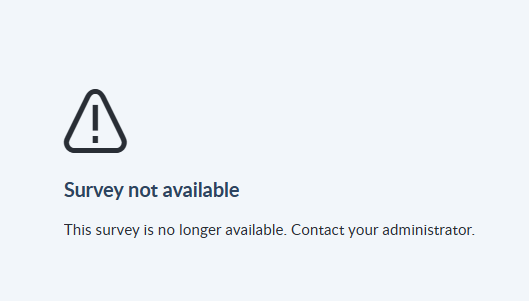
Newly created surveys are not affected and automatically use the new URL format.
Action Required
If respondents need access to an existing survey, a Survey Owner or Administrator must send an updated survey link. Depending on the number of respondents who still need to complete the survey, Survey Owners can redeploy the survey to all respondents, send a scheduled reminder, or resend the survey link to specific individuals. Redeploying the survey or setting up a reminder is recommended when many respondents still need to participate, while resending the link is a convenient option for a small number of active respondents.
Resend the survey link to all respondents
-
Open the survey.
-
Open More actions > Undeploy survey.
-
In the confirmation message, select Undeploy survey.
-
Select Redeploy.
-
Use the drop down and select All respondents.
-
Select Redeploy survey.
When you redeploy a survey to all respondents, everyone receives a new survey link, including respondents who have already completed the survey.
Schedule a reminder email
-
Open the survey.
-
Select the Reminders tab.
-
Select Create a reminder.
-
Enter a reminder name.
-
Select a Immediate as the recurrance.
-
Select an existing reminder template from the dropdown or draft a custom message in the Additional Note field.
-
Select Save.
Respondents who have not yet completed the survey will receive a reminder email with a new survey link.
Resend the survey link to select respondents
-
Open the survey.
-
Select the Respondents tab.
-
To send a new survey link, select
 and Re-send deployment email for the applicable respondent in the respondent grid.
 -
Select Re-send deployment email from the confirmation message.
-
A new deployment email with the new survey link is sent to the individual respondent.
-
Repeat the steps for each respondent than needs a new survey link.
TipFilter respondents by survey status to determine who needs a new survey link.
New survey links are sent by email. Respondents must use the new link to continue accessing the survey.
Redeploying the survey has no impact on survey data, existing submissions, or reporting. Survey owners can continue to view submissions, monitor responses, and manage surveys as usual.
